
Let us Help you with you next ICT Project
Fun Promotions !!
No transport cost for all new customers
Already a customer? save points and win super prices.
Our Services
IT Infrastructure
Reliable IT Infrastructure, the core of your companyIT Infrastructure
From PC to Servers,
WiFi, Switches, Storage, vSAN
Virtualisation and much more,…
We manage, install and monitor your intire infrastructure
IT Support and Helpdesk
Your IT problems are our IT problemsIT Support and Helpdesk
Onsite: A technician will handle your problems onsite and solve all your IT problems and any question you may have?Online: Our helpdesk is always ready to solve your IT problem or answer your questions
Fixed price per month.
Security
We help you with the security of your network or companySecurity
Spamfilters, load balancers and web filters
From firewalls to antivirus
Professional Camera Security
Power Security with UPS Systems from Eaton and APC
Cloud Services
Your backup or Servers in the cloud. See all of our servicesCloud Services
Backup as a Service, Disaster recovery
Infrastructure as a Service with VMware or Azure
Office 365, Exchange hosting
Software as a Service
VDS Systems
Work towards your IT for tomorrow.






Veeam direct SAN Access mode.
Sometimes I still run into customer who don't use direct SAN access mode for backing up there VM's taking this from the veeam website (here) you still need to add iSCSI targets and disable automount in windows Requirements for the Direct SAN Access Mode To use the Direct SAN access transport mode, make sure that the following requirements are met: A backup proxy working in the Direct SAN Access transport mode can be deployed on a physical or virtual machine. A backup proxy using the Direct SAN access transport mode must have a direct access to the production storage via a hardware or software HBA. If a direct SAN connection is not configured or not available when a job or task starts, the job or task will fail. SAN storage volumes presented as VMware datastores must be exposed to the OS of the backup proxy that works in the Direct [...]
VMware nested ESXi 6.x
Here are some steps to consider when create a nested ESXi Host. These steps are done on a vSphere webclient. First adjust your security on your switch so the traffic can pass through your nested ESXi host vSwitch: Select your host and click on the manage tab. Go to the networking section and select virtual switch. Edit the switch and select your security settings. Make sure your promiscuous mode is on accepted DvSwitch: Go to Home -> networking. Select your PortGroup and navigate to manage – Settings tab. Click on the edit button and select the security section. Make sure your promiscuous mode is on accepted Now create a new Virtual Machine to run your new ESXi host in. Go through the steps like any other VM but make sure you chose Compatible with : ESXi 6.0 and later "Select OS family : Other" and "Guest OS version: VMware ESXi [...]
vSphere HTML5 Web Client
Here is a small video of how to deploy the vSphere HTML5 Web Client on a Windows vCenter server https://www.youtube.com/watch?v=mvFkRTR06l0
Projects

Hosted Exchange 2010 to 2013 (Multi tenant) with VMware vSphere 5.5
Project description
Preparation
This is an overview of the project and not a technical document how to migrate to Exchange 2013. In the past we setup a multi tenant environment with Exchange 2010. At that time there was only resources for 1 physical server, wich was sufficient at the time […]
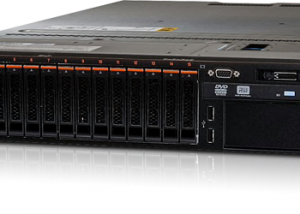
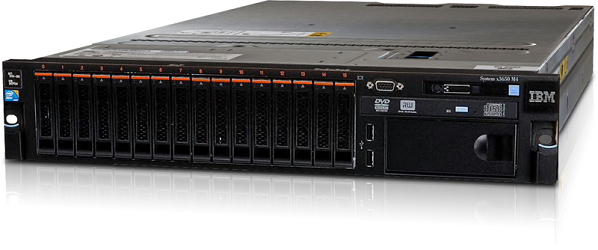
IBM V3700 iSCSI and IBM System x3650 M4
Project description
The Lay-out
We chose this project because we could reduce the cost by selecting iSCSI over fiber
- The environment existed of a mix of Windows 2000, 2003 and 2008 servers.
- Big files and home folders of several GB to 4TB.
- The existing ERP Software had to keep working […]

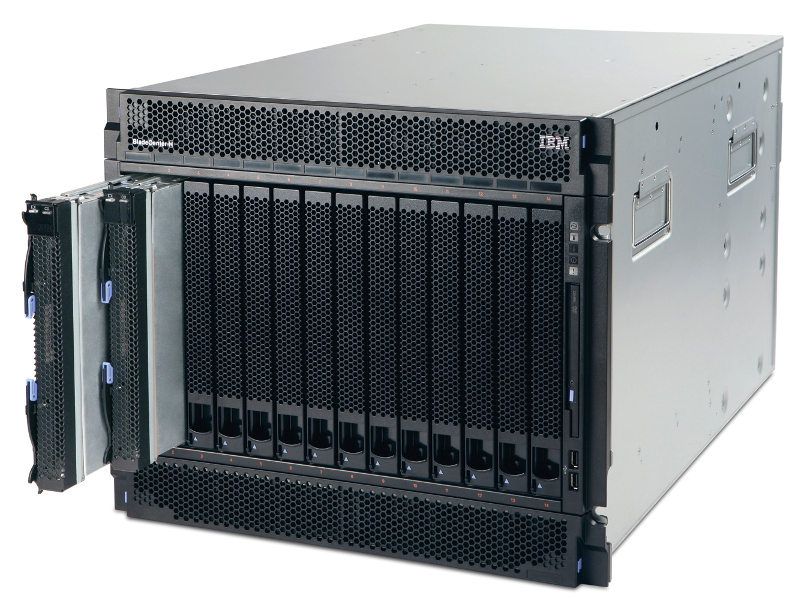
Lenovo/IBM BladeCenter H
Project description
To be honest the racks were full of old server that havent been touch in over 10 to 15 years. So there were big HP server G2 and G4 generation among them, wich made it easy to reclaim so much rack space. Non the less its was […]